

Updated August 10, 2026
Start with screenshot search
Screen Index is built around search. You do not need to remember a file name or the folder where a screenshot was saved. Search what you remember, open the matching image, then choose what to do with it.
Open Screen Index
Use the main library when you want to browse or work with several screenshots.
Search what you remember
Type visible text, an app, a website, a color, a tag, a QR code, or a visual detail.
Use the result
Copy, drag, edit, file, or reopen the source when saved context is available.
Search screenshots from any Mac screen
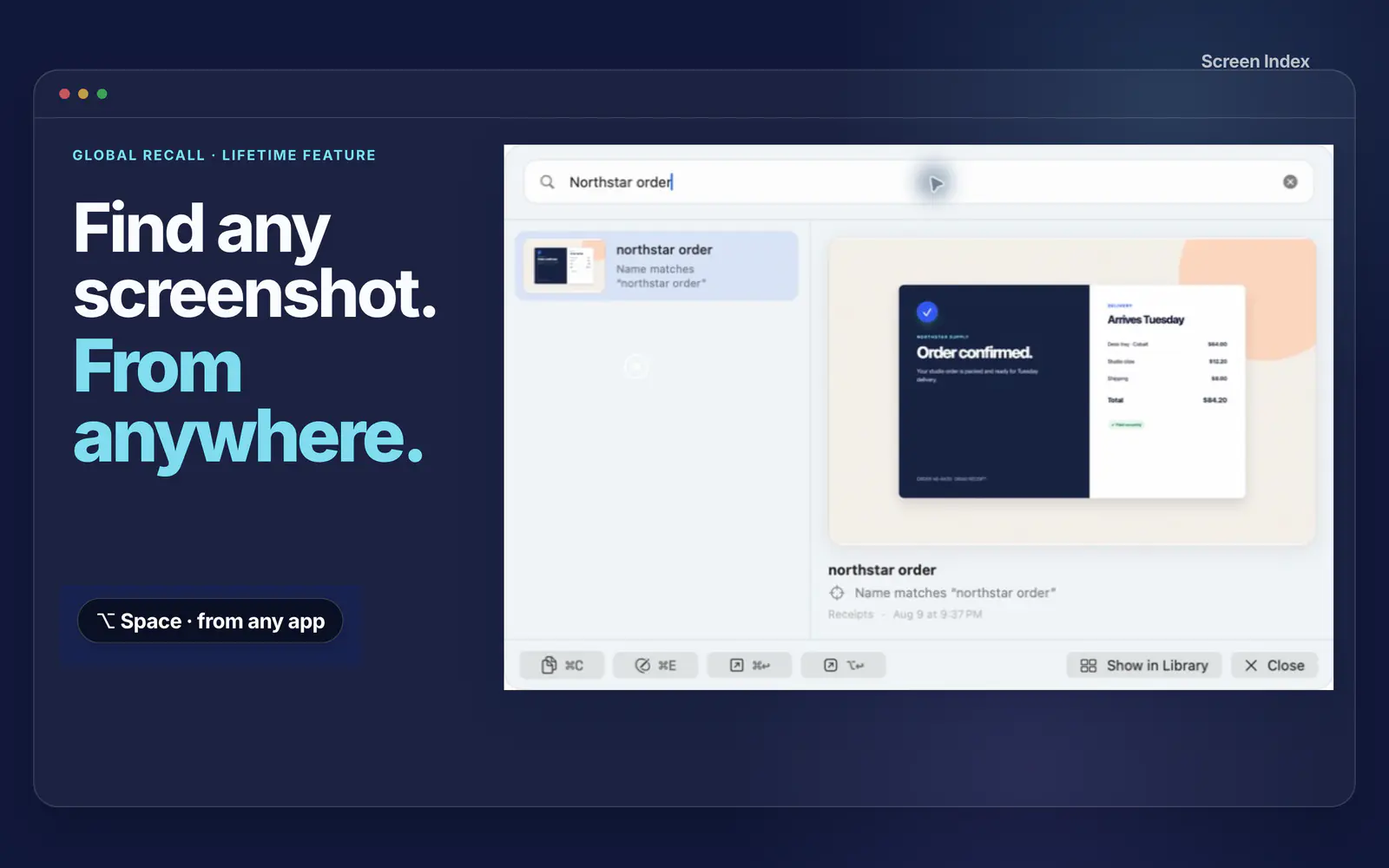
Global Recall opens screenshot search over the app you are using. This is useful when you need an old receipt, note, design, order number, or error message without leaving the work in front of you.
Search text with OCR
Find a screenshot by words shown inside the image, even when the file name does not help.
Search visual clues
Use apps, websites, colors, QR codes, tags, and visual details to narrow the results.
Return to the source
When Capture Context is enabled, reopen a saved app or supported browser page.
Organize screenshots in real Finder folders
Screen Index works with real files and Finder folders. Add tags for details that cross folders. Use Quick File after capture or handle several screenshots later with batch actions.
File a new screenshot
Use a Quick File folder or tag suggestion while you still know why you took the screenshot.
Leave it in the inbox
Skip filing when you are busy. The screenshot can wait in the inbox until later.
Clean up a group
Select many screenshots to move, tag, copy, or send to Trash in one action.
Edit and reuse a screenshot
Open the editor to crop, frame, mark up, or hide private details. Screen Index exports a new copy and keeps the original screenshot unchanged. Copy the finished image or drag it into another Mac app.
Crop and frame
Remove what does not matter and add clean space around the part you want to share.
Mark up and hide details
Point to the key part and cover names, messages, or account information.
Copy or drag
Move the screenshot straight into a message, document, design, or other Mac app.
Keep screenshot data on your Mac
Screenshots, OCR, search details, suggestions, and saved context are processed and stored on your Mac. Screen Index does not require an account and does not upload your screenshot library.
FAQ
Questions about Screen Index app guides
What can I search for in Screen Index?
Search visible text, apps, websites, colors, tags, QR codes, and visual details shown in screenshots.
Can I search without opening the full library?
Yes. Global Recall opens screenshot search from any screen on your Mac.
Does Screen Index use real Finder folders?
Yes. Your screenshots remain normal files in folders you can open and manage in Finder.
Does the editor change my original screenshot?
No. Screen Index exports a new copy and leaves the original screenshot unchanged.
Does Screen Index upload my screenshot library?
No. Screenshots, OCR, search data, suggestions, and saved context are processed and stored on your Mac.